> ## Documentation Index
> Fetch the complete documentation index at: https://docs.major.build/llms.txt
> Use this file to discover all available pages before exploring further.
# Quickstart
> Install the Major plugin in your AI client and build your first app.
This guide connects your AI client to Major and walks you through building and deploying your first app.
Don't use an AI client? Go to [app.major.build](https://app.major.build), sign in, and describe what you want to the [Platform Agent](/build/platform-agent). You can skip to [Step 2](#step-2-build-something).
## Step 1: Install the Major plugin
The Major plugin adds the Major MCP server (`https://mcp.major.build/mcp`) and the Major skills to your client. Pick your client:
Run this command in your terminal.
```bash theme={null}
claude plugin marketplace add major-technology/cli
```
```bash theme={null}
claude plugin install major@major
```
Your browser opens the Major sign-in page. Sign in and accept the access request.
```bash theme={null}
claude mcp login plugin:major:major
```
The "plugin:major:major" server shows the URL `https://mcp.major.build/mcp` and the status "Connected".
```bash theme={null}
claude mcp list
```
Start Claude Code and ask a question about your Major workspace.
```bash theme={null}
claude
```
```text theme={null}
List my Major apps.
```
You can also run the same steps inside a Claude Code session: `/plugin marketplace add major-technology/cli`, then `/plugin install major@major`.
Run this command in your terminal.
```bash theme={null}
codex plugin marketplace add major-technology/cli
```
```bash theme={null}
codex plugin add major@major
```
Your browser opens the Major sign-in page. Sign in and accept the access request.
```bash theme={null}
codex mcp login major
```
The "major" server shows the URL `https://mcp.major.build/mcp`. The Auth column no longer shows "Not logged in".
```bash theme={null}
codex mcp list
```
Start Codex and ask a question about your Major workspace.
```bash theme={null}
codex
```
```text theme={null}
List my Major apps.
```
In the ChatGPT desktop app, click **Plugins** in the side panel.
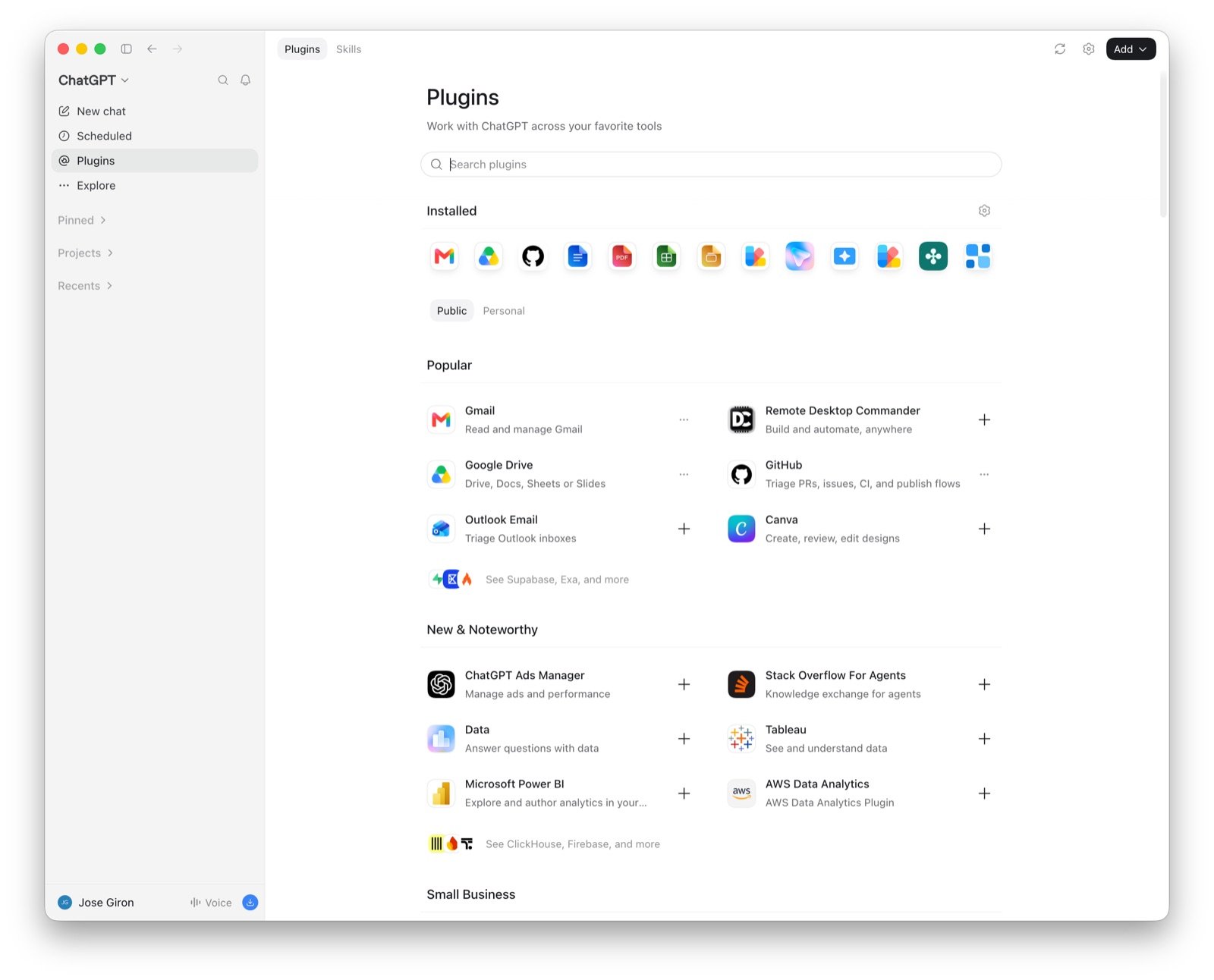 Click **Add** in the top right, then **Add a marketplace**.
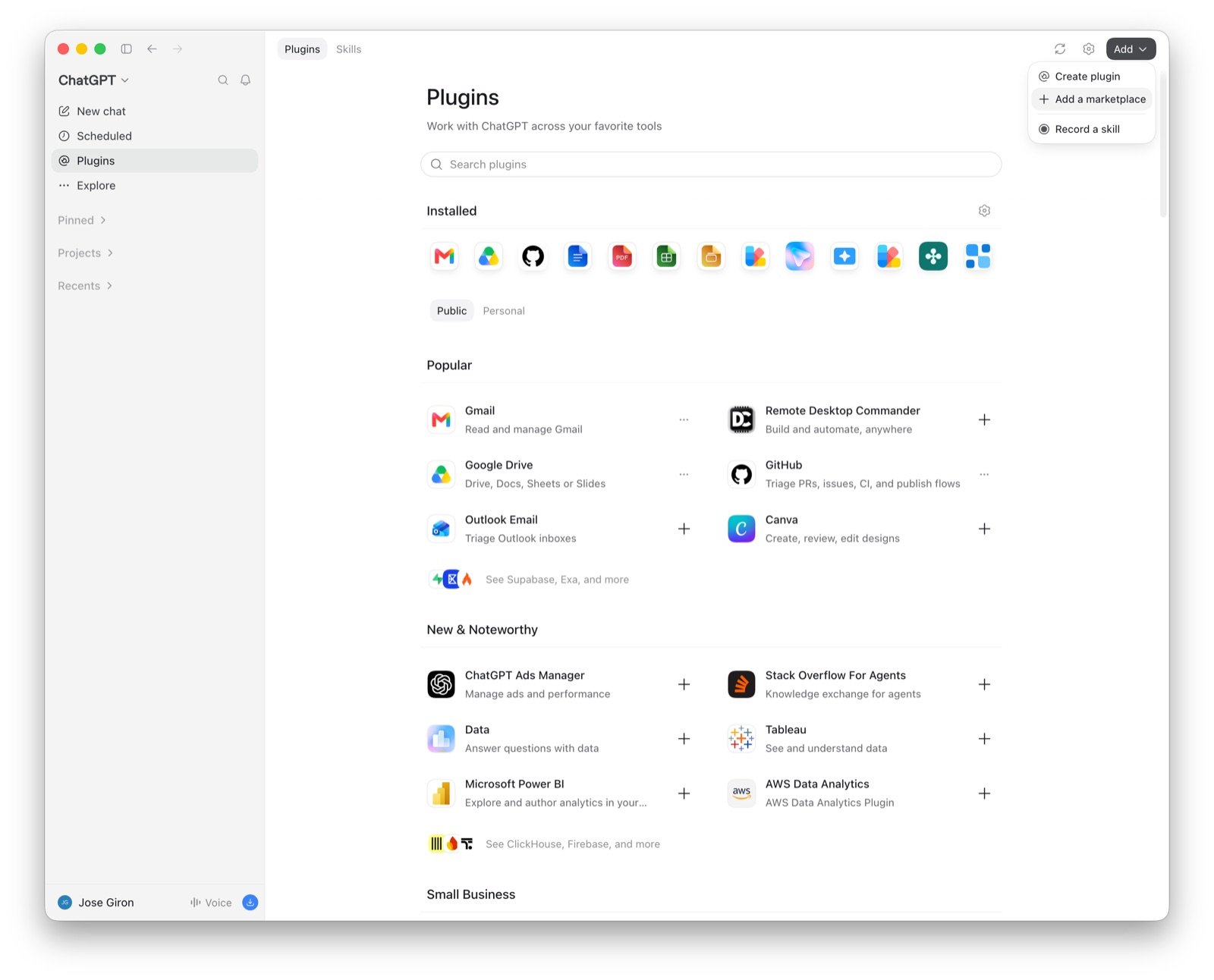 In **Source**, type `major-technology/cli`. Leave **Git ref** and **Sparse paths** empty. Click **Add marketplace**.
```text theme={null}
major-technology/cli
```
In **Source**, type `major-technology/cli`. Leave **Git ref** and **Sparse paths** empty. Click **Add marketplace**.
```text theme={null}
major-technology/cli
```
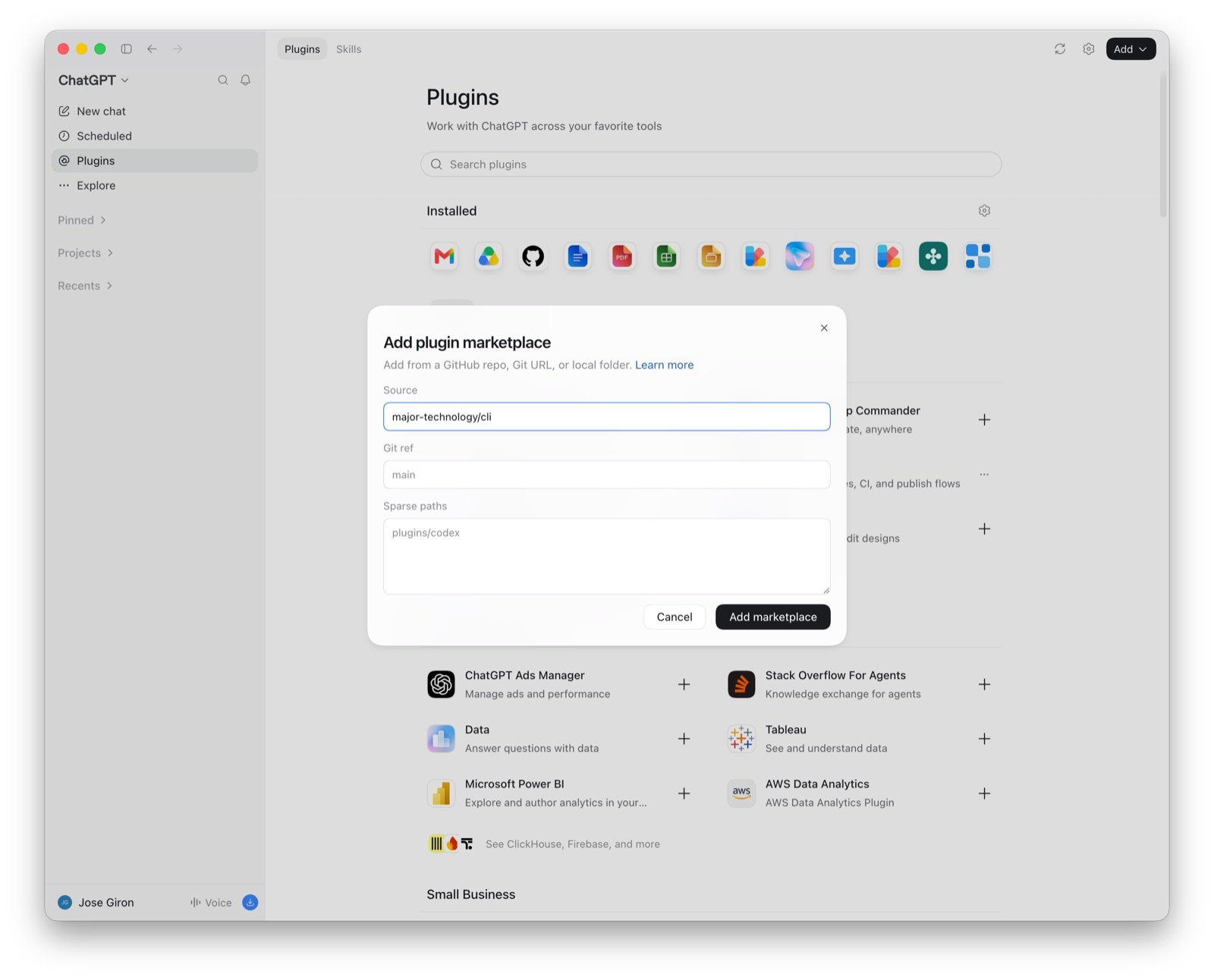 Search for "major", then click the Major plugin: "Build apps and agents on Major".
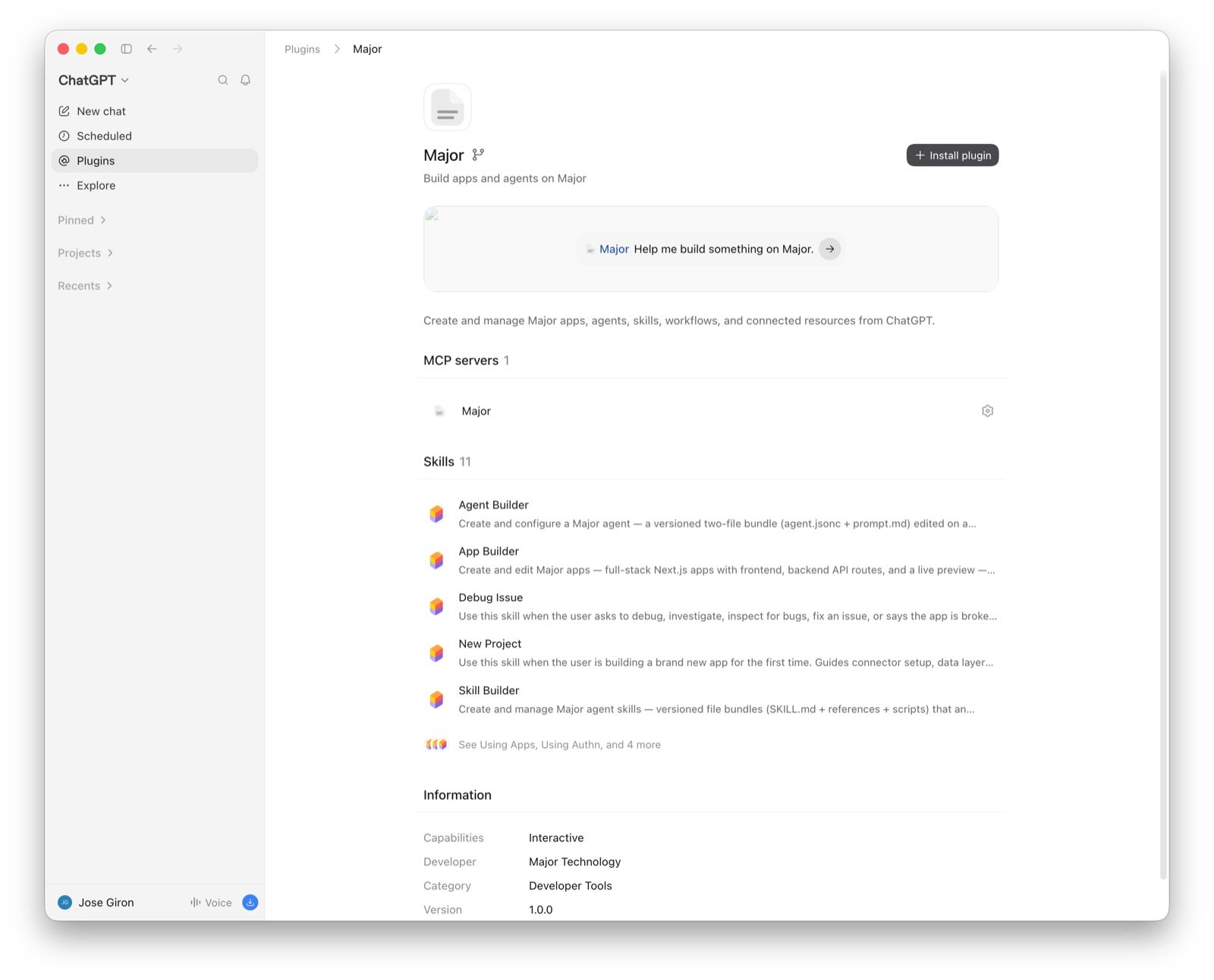
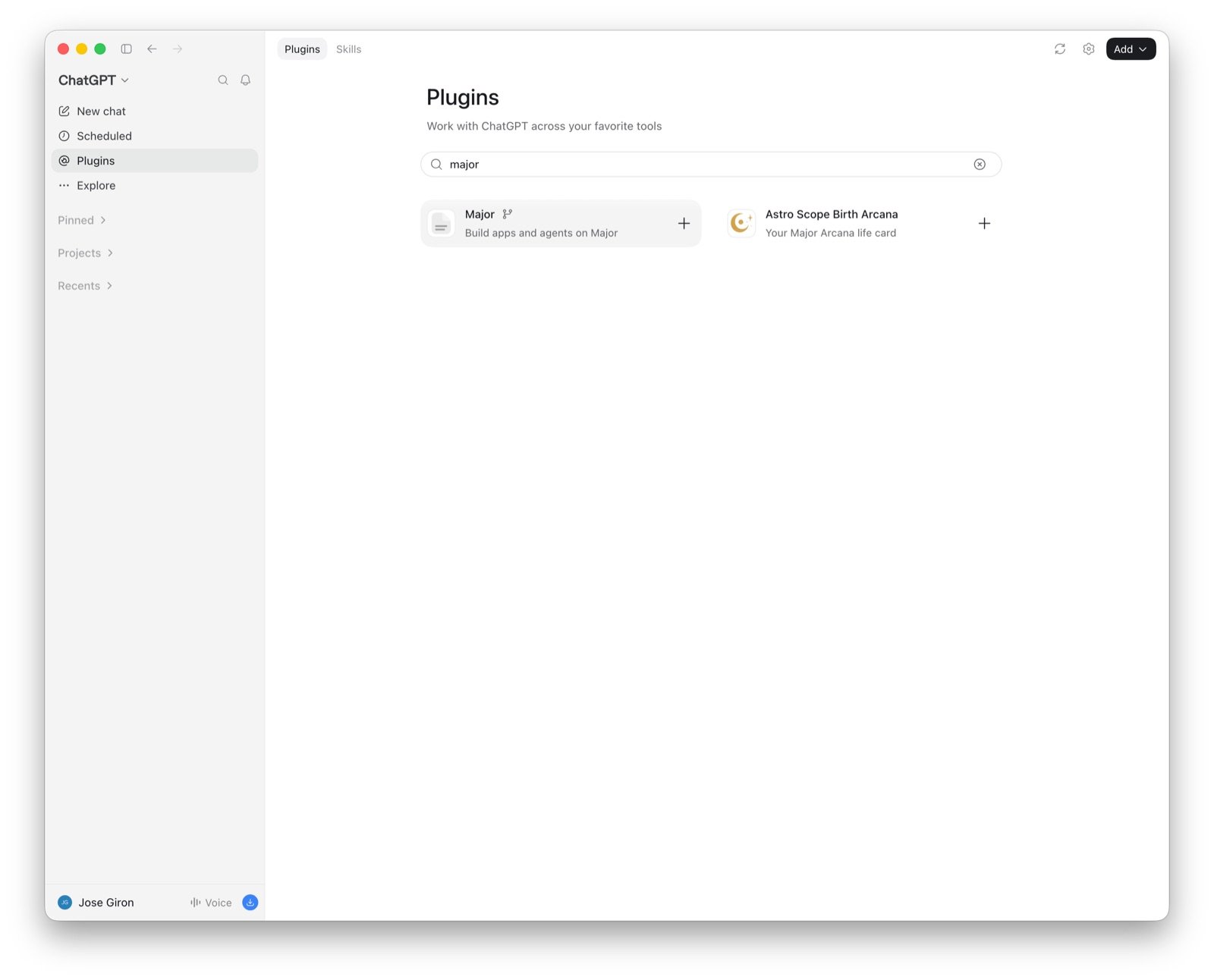 The plugin page shows the Major MCP server and the Major skills. Click **Install plugin**.
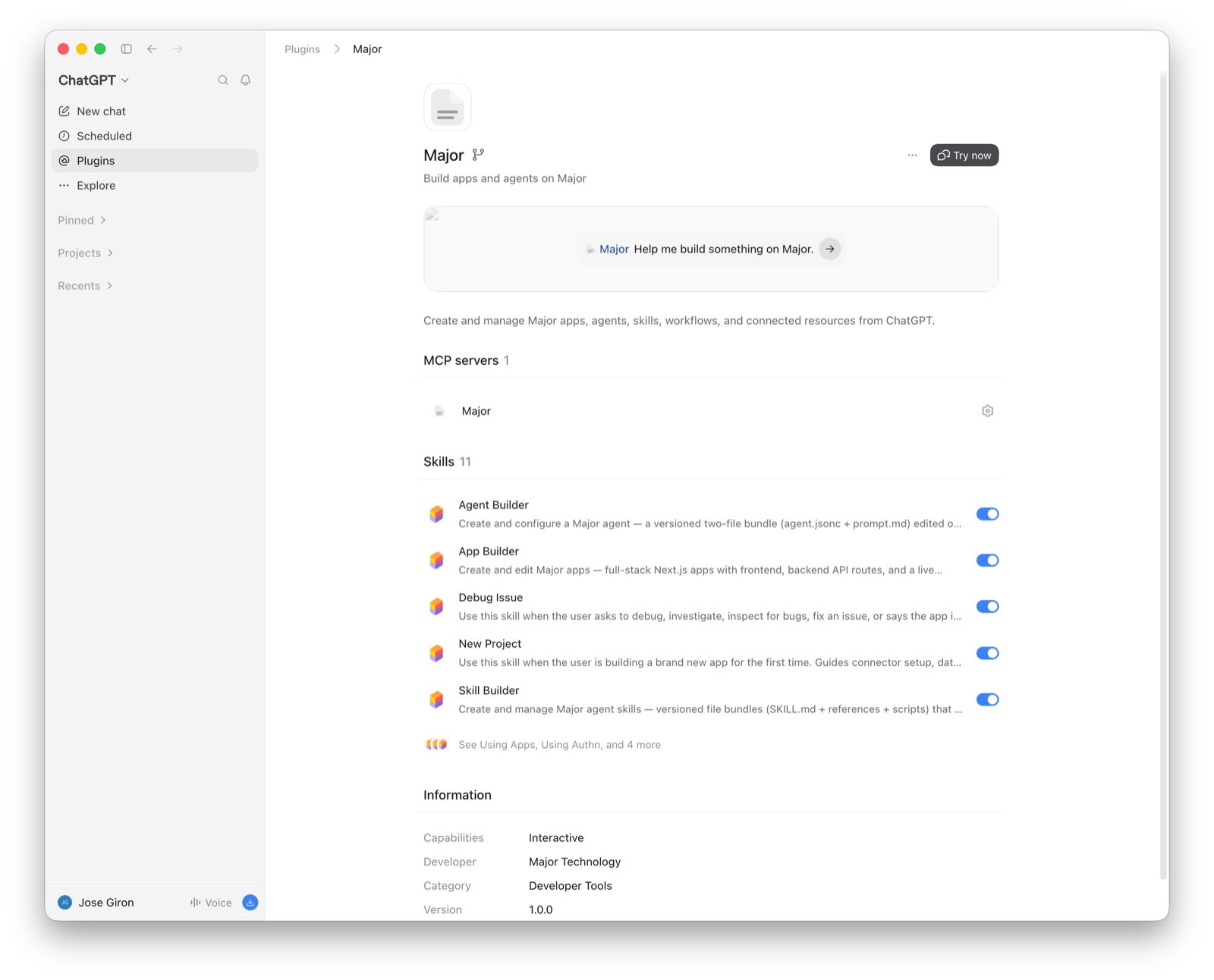
 The skills are on after the install. Click **Try now**. When ChatGPT asks, sign in to Major and accept the access request.
 Ask a question about your Major workspace.
```text theme={null}
List my Major apps.
```
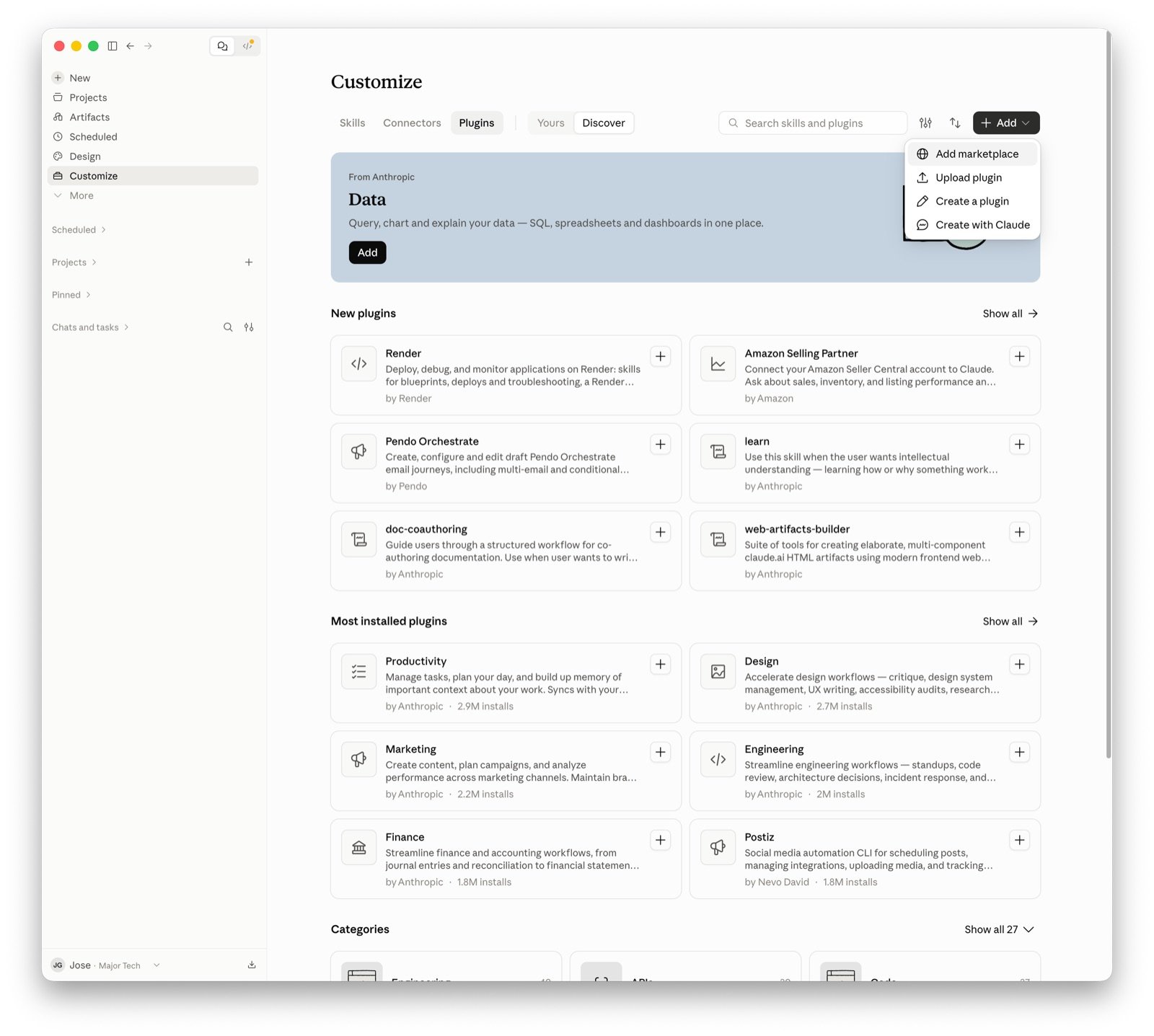
In the side panel, click **Customize**, then open the **Plugins** tab. Click **+ Add**, then **Add marketplace**.
Ask a question about your Major workspace.
```text theme={null}
List my Major apps.
```
In the side panel, click **Customize**, then open the **Plugins** tab. Click **+ Add**, then **Add marketplace**.
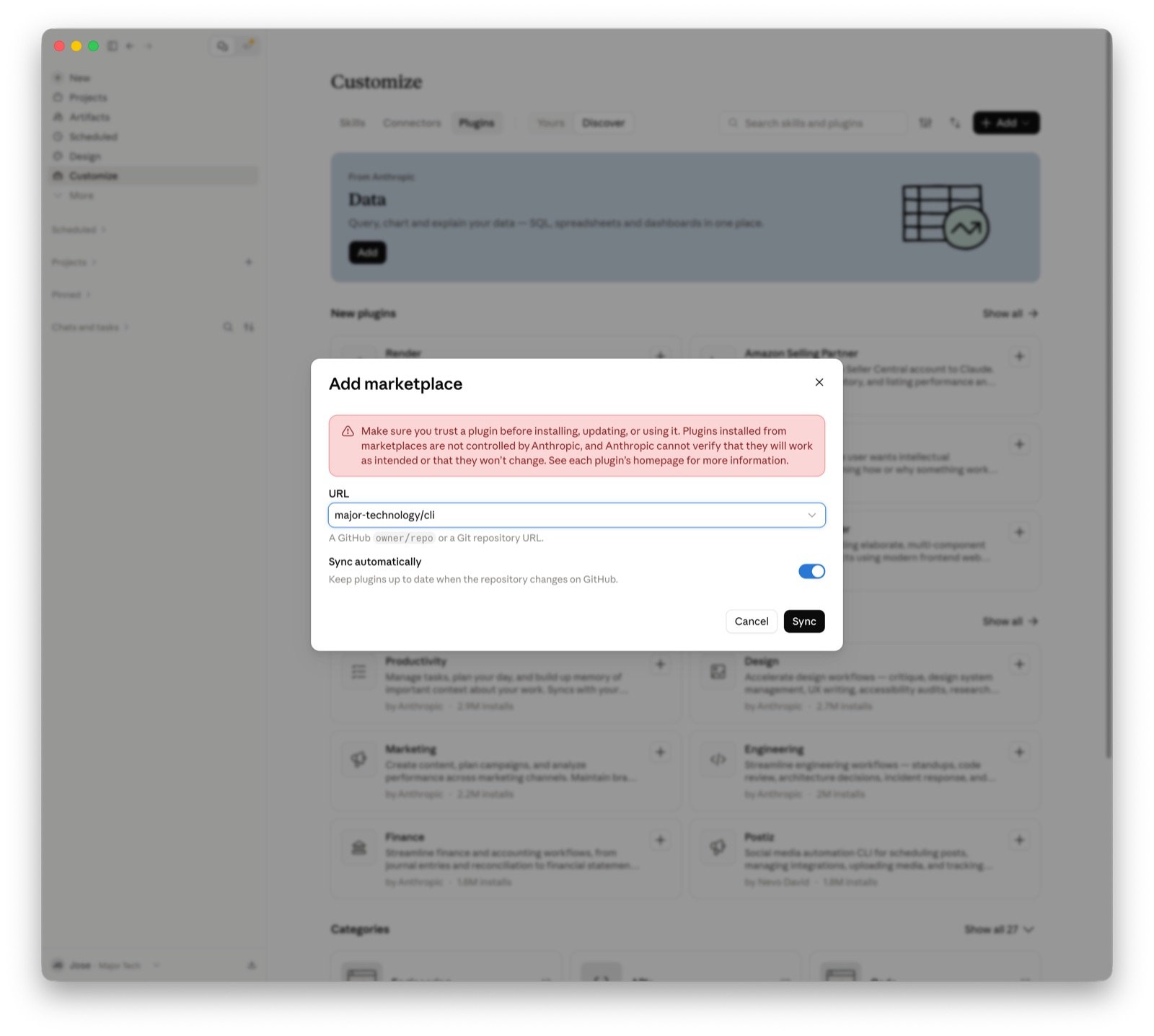
 In the URL field, type `major-technology/cli`. Keep **Sync automatically** on, then click **Sync**.
```text theme={null}
major-technology/cli
```
In the URL field, type `major-technology/cli`. Keep **Sync automatically** on, then click **Sync**.
```text theme={null}
major-technology/cli
```
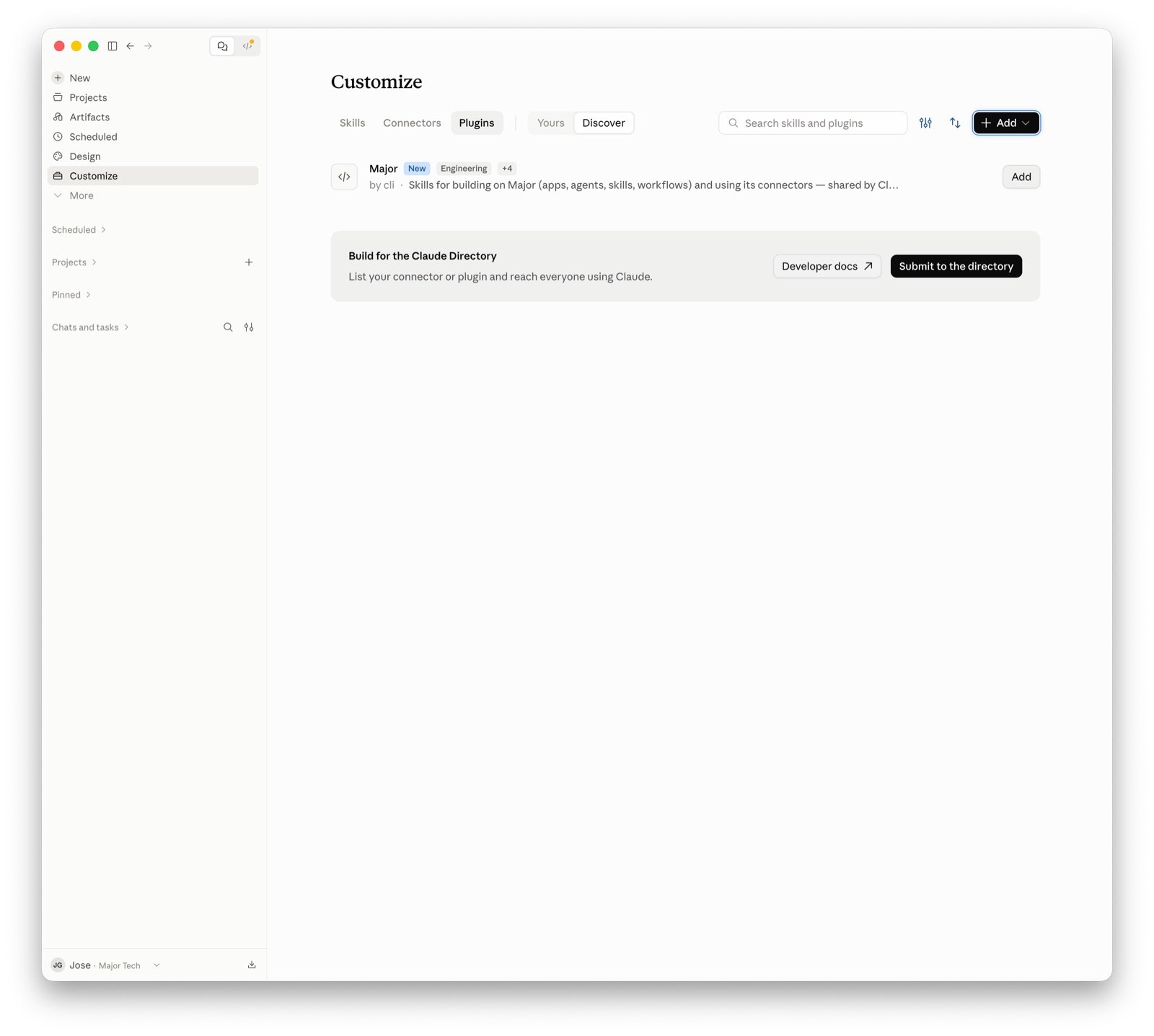
 The Major plugin shows in the list. Click **Add**.
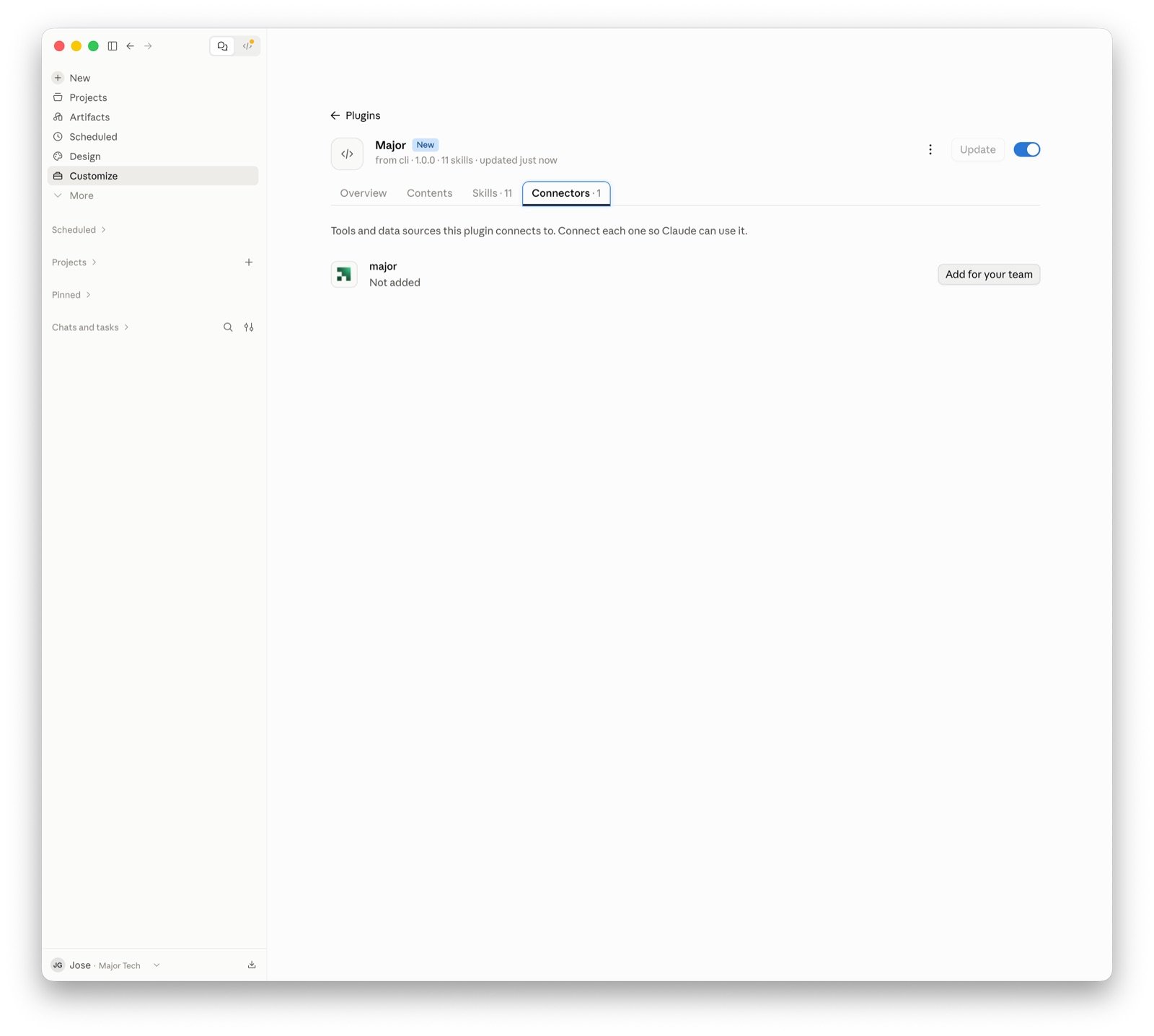
 On the Major plugin page, open the **Connectors** tab. Next to "major", click **Add for your team**.
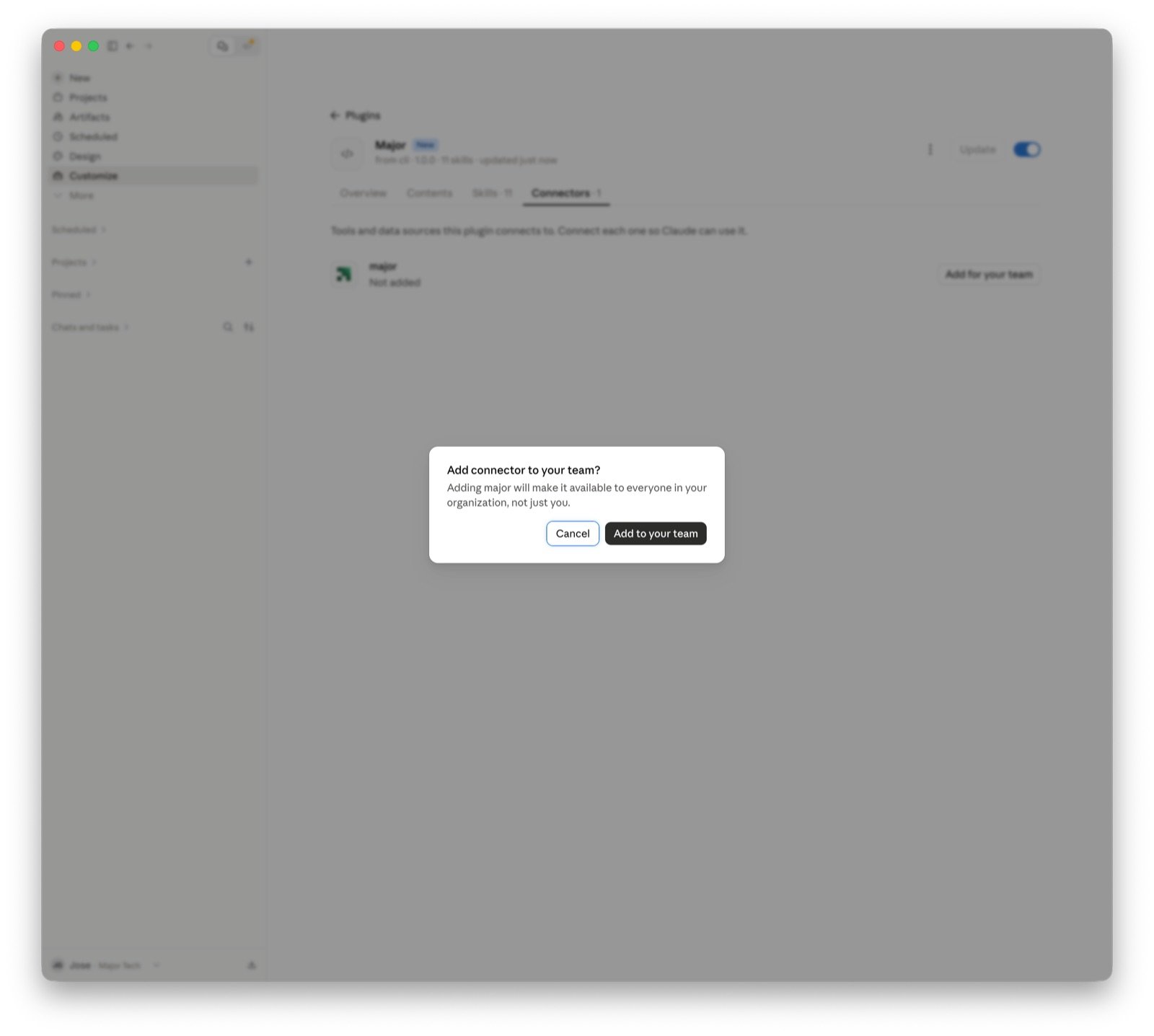
 Click **Add to your team**. This makes the connector available to everyone in your organization.
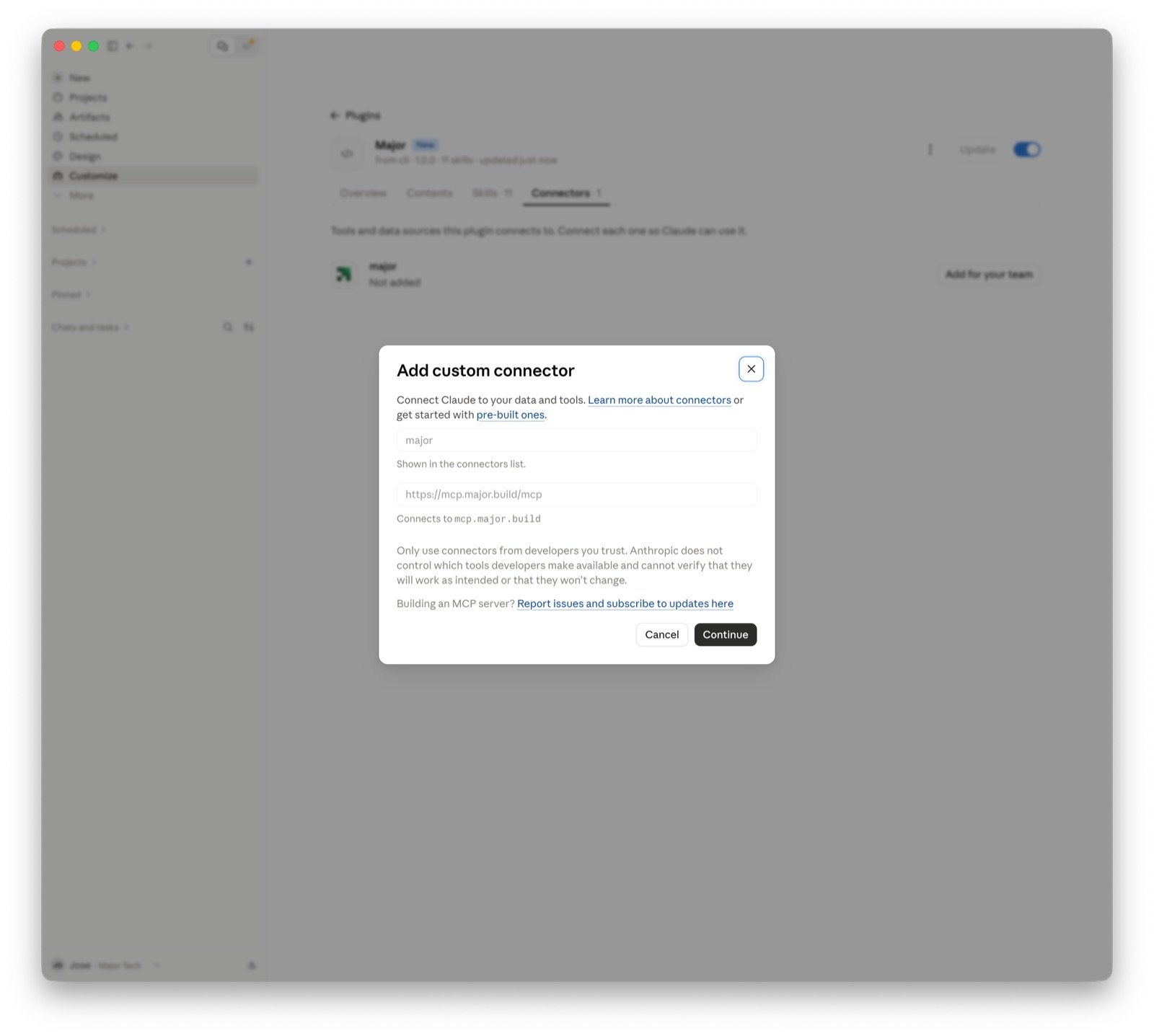
 The form already contains the name "major" and the URL `https://mcp.major.build/mcp`. Click **Continue**.
 Keep **Sign in now** and **Register automatically**. Both are detected for Major. Click **Add**.
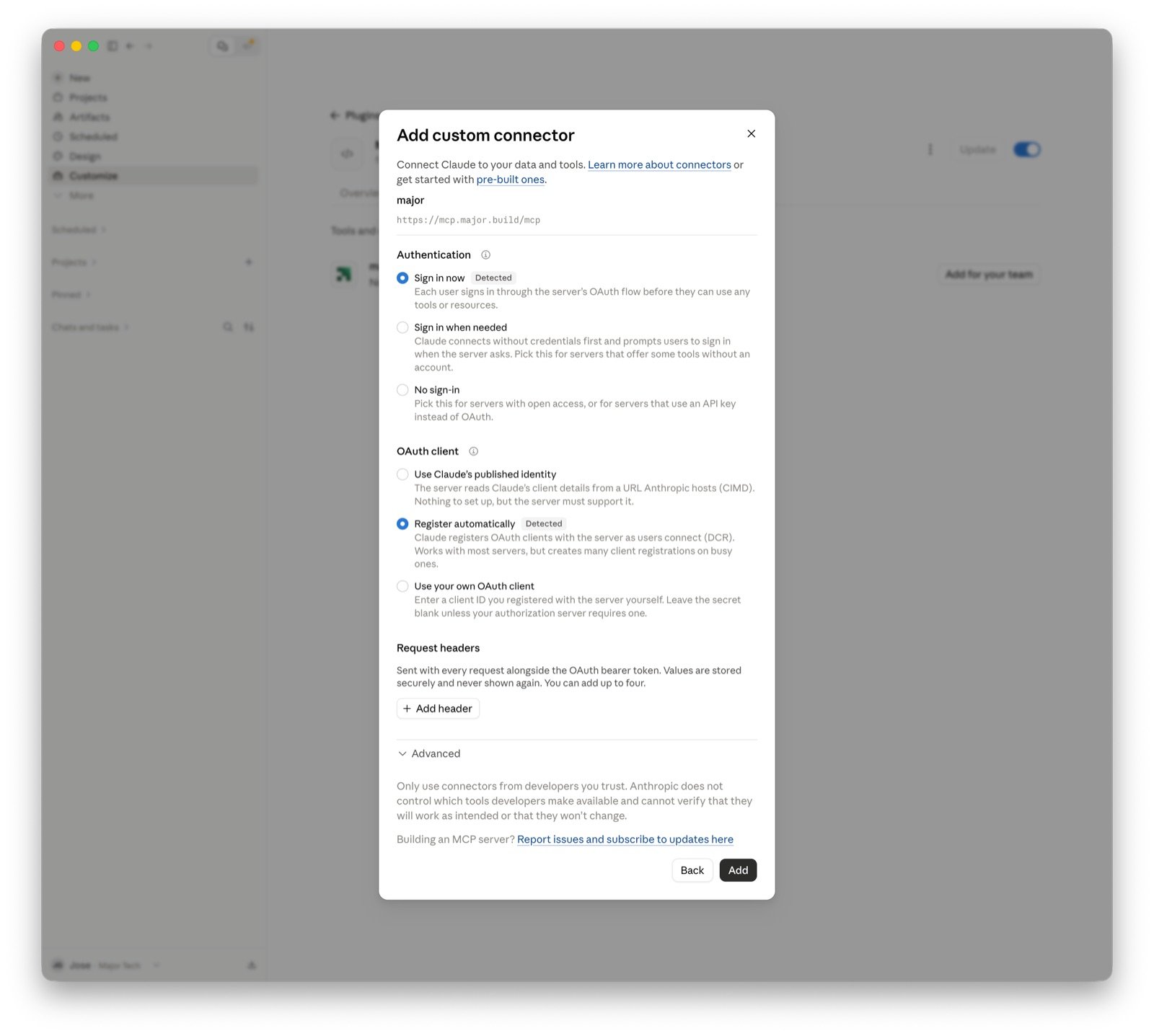 Claude opens the Major sign-in page. Sign in and accept the access request.
Start a new chat and ask a question about your Major workspace.
```text theme={null}
List my Major apps.
```
## Step 2: Build something
Describe the app you want and name the system its data lives in. For example:
```text theme={null}
Build me an app that shows open deals by stage and owner from my HubSpot, with a filter for close date.
```
Here is what happens next:
If the connector you named isn't set up yet, you get a setup card (or a link, in an AI client). Open it, connect the account, and the build continues. See [Connectors](/learn/connectors/overview).
The agent creates the app and writes the code in a cloud sandbox. It reads the connector's schema and context documents so the queries match your data.
You get a live preview URL of the running app. Ask for changes in plain language and the preview updates.
When it looks right, ask the agent to deploy. The app gets a production URL that you can share with your team. See [Deploying](/learn/apps/deploying).
For more ideas, see [Use cases](/get-started/use-cases).
## Step 3: Next steps
Copyable prompts for apps, agents, and workflows.
How apps are built, versioned, and deployed.
Build agents that act on your data, in Slack or on a schedule.
See every connector Major supports.
Claude opens the Major sign-in page. Sign in and accept the access request.
Start a new chat and ask a question about your Major workspace.
```text theme={null}
List my Major apps.
```
## Step 2: Build something
Describe the app you want and name the system its data lives in. For example:
```text theme={null}
Build me an app that shows open deals by stage and owner from my HubSpot, with a filter for close date.
```
Here is what happens next:
If the connector you named isn't set up yet, you get a setup card (or a link, in an AI client). Open it, connect the account, and the build continues. See [Connectors](/learn/connectors/overview).
The agent creates the app and writes the code in a cloud sandbox. It reads the connector's schema and context documents so the queries match your data.
You get a live preview URL of the running app. Ask for changes in plain language and the preview updates.
When it looks right, ask the agent to deploy. The app gets a production URL that you can share with your team. See [Deploying](/learn/apps/deploying).
For more ideas, see [Use cases](/get-started/use-cases).
## Step 3: Next steps
Copyable prompts for apps, agents, and workflows.
How apps are built, versioned, and deployed.
Build agents that act on your data, in Slack or on a schedule.
See every connector Major supports.